Working Days
Your company's weekly clock-in calendar - which days are working days and what hours each one runs.
What is it?
Working Days (the UI calls it "Working Times") is where you define your company's work week. You build named schedules - "Standard Office Hours Mon–Fri", "Warehouse 6-Day", "Restaurant Split Shift" - and assign them to the company or to specific departments.
Every module that cares whether someone should be at work reads from here:
- vimiCheckin uses the schedule to know the expected clock-in time, when to send reminders, and how early people can clock in.
- vimiLeave counts only working days in a leave duration.
- vimiGoal and vimiSales with "Apply Working Days" turned on skip off-days in daily target calculations.
- Attendance leaderboards calculate attendance percentage against the expected working days.
Together with Holidays, Working Days gives vimigo the full picture of when your people should be at work.
Quick Start
To set up a standard office schedule for your whole company:
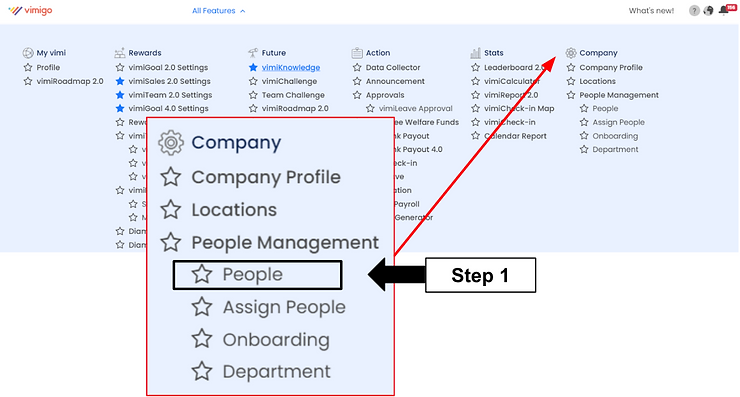
- Company > "Working Time".
- Click "Load Template", pick a 5-day template (e.g. "Standard Office Hours Mon-Fri"), click "Load".
- Click the new schedule > review Mon–Fri 9:00–18:00 in the "Workday List" > "Update" if needed.
- Back on the main page, in the right panel, set "Company Default Working Times" to your new schedule and click "Update".
After this, every employee without a department override follows that schedule.
For Admins (Employer / HR / Manager)
How to set up standard 9-to-6 Mon–Fri for the company
- Open Company > "Working Time".
- Click "Load Template" to expand the template panel.
- Pick a 5-day template from "Select a Template", then click "Load". The template is cloned into your company.
- Click the new schedule's name to open "Edit".
- In the top form, set:
- "Name" - e.g. "Standard Office Hours"
- "Timezone" - e.g.
Asia/Kuala_Lumpur - "Start Of Week" - Monday (most common for Malaysian offices)
- Click "Update" in the top form.
- Scroll to "Workday List" - you'll see one row per weekday with "From" and "To" times.
- Check each row: Mon–Fri should have From =
09:00and To =18:00. Saturday and Sunday should be absent (or empty). - If times are wrong, click "From" or "To" and adjust (the time picker uses 15-minute increments).
- Click "Update" in the "Workday List" section.
- Return to "Working Time".
- In the right panel "Company Working Times", pick your new schedule in "Company Default Working Times" and click "Update".
Background jobs push the schedule to every employee.
How to configure a 6-day schedule for one department
Scenario: Your warehouse team works Mon–Sat 8:00–17:00, but the office team stays on Mon–Fri.
- Create a separate schedule for the warehouse. Either load a 6-day template, or "Copy" the existing 5-day schedule as a starting point.
- Open the new schedule in "Edit".
- Rename it to something clear, e.g. "Warehouse 6-Day", and click "Update".
- In "Workday List", find the empty row at the bottom and add Saturday:
- "Weekday" - Saturday
- "From" -
08:00 - "To" -
17:00
- Adjust Mon–Fri rows so they also read From =
08:00To =17:00. - Click "Update".
- Go back to "Working Time".
- In the right panel, find "Department Working Times Override".
- Locate the Warehouse department row.
- Uncheck "Use Company Default" - the dropdown becomes enabled.
- Pick "Warehouse 6-Day" from the dropdown.
- Click "Update".
Warehouse employees are updated in the background; the office team is unaffected.
How to configure a split-shift schedule (e.g. restaurant)
Kitchen staff work two shifts daily: 10:00–15:00 and 17:00–22:00. Each shift is a separate row in "Workday List".
- Create or copy a schedule, open it in "Edit".
- In "Workday List", for each working day (e.g. Monday), add two rows:
- Row 1: Weekday = Monday, From =
10:00, To =15:00 - Row 2: Weekday = Monday, From =
17:00, To =22:00
- Row 1: Weekday = Monday, From =
- Repeat for Tuesday through to whatever day the kitchen works.
- Click "Update".
- Assign this schedule via the department override panel.
Note: For check-in reminders and the early-clock-in window, vimigo uses the earliest start time of the day - 10:00 in this example.
How to turn on clock-in reminders for a department
vimiCheckin can send push notification reminders shortly before the scheduled start time. You control this per department.
- Company > "Working Time".
- In the right panel, find the department.
- Tick the "Reminder To Clock In" checkbox on that row.
- Click "Update".
Employees in that department get reminders; others don't.
How to duplicate a schedule for a new team
- On the "Working Time" list, click "Copy" on a schedule to duplicate.
- Open the copy in "Edit", rename it, and adjust hours as needed.
- Assign it to the target department via the override panel.
How to delete a schedule you no longer use
- "Working Time" > find the schedule.
- If "Delete" is disabled or shows a warning, the schedule is still in use. Switch any department or company assignment to a different schedule first.
- Click "Delete" and confirm.
Schedule types - when to use which
| Type | When to use | Example |
|---|---|---|
| 5-day (Mon–Fri) | Standard office / HQ teams | 09:00–18:00 Mon–Fri |
| 6-day (Mon–Sat) | Retail, F&B, warehouse, customer service | 09:00–18:00 Mon–Fri, 09:00–13:00 Sat |
| Split shift | Restaurants, healthcare, security with structured mid-day breaks | 10:00–15:00 and 17:00–22:00 |
| Flexible | Non-uniform schedules, early-finish Fridays | Mon–Wed 9–6, Thu–Fri 10–7, Sat 9–1 |
How schedules resolve to each employee
vimigo checks these in order and uses the first one it finds:
- User-level - set automatically when dept/company changes (or programmatically).
- Department override - from "Department Working Times Override".
- Company default - from "Company Default Working Times".
- System default - Mon–Fri 10:00–19:00 (falls back if nothing else is set).
When you change the company default or a department override, background jobs push the update to every affected employee.
For Employees
You don't configure your working schedule - your management user does. What you'll notice:
- The mobile app shows your expected clock-in time on the home screen.
- You can clock in up to 3 hours before the scheduled start time. Trying earlier will get a warning.
- On off-days (e.g. Saturdays for a Mon–Fri schedule), the app doesn't expect a clock-in and no reminder fires.
- Goals and sales with "Apply Working Days" turned on automatically skip your off-days when calculating daily targets.
If the schedule on your app looks wrong, tell your HR - they change it in "Working Time" settings.
Settings & Configuration
| Setting | What it does | Default | Where |
|---|---|---|---|
| "Company Default Working Times" | Schedule every employee uses unless their dept overrides | Empty / system default | Working Time > right panel |
| "Department Working Times Override" | Different schedule for a specific department | Uses company default | Working Time > right panel |
| "Use Company Default" checkbox | When ticked, the department follows the company default | On | Per-department row |
| "Reminder To Clock In" checkbox | Enables push reminders before clock-in for that department | On | Per-department row |
| Schedule "Name" | Display name used in dropdowns | Required | Edit Schedule > top form |
| Schedule "Timezone" | IANA timezone for clock-in calculations | Depends on template | Edit Schedule > top form |
| "Start Of Week" | Which day appears first in week view | Monday | Edit Schedule > top form |
| "Workday List" entries | Per-day time slots - weekday + from + to | Varies by template | Edit Schedule > "Workday List" |
Start of Week options
| Option | Common use |
|---|---|
| Monday | Most offices and European-style calendars |
| Sunday | US-style calendars |
| Saturday | Middle East region |
FAQ
Q: I set up Mon–Fri but vimiCheckin still expects employees on Saturday.
A: Open the schedule in "Edit" > "Workday List". Look for any row with "Weekday" = Saturday. If one exists, click "Remove" on that row and click "Update".
Q: The check-in reminder is sending at the wrong time.
A: The reminder fires at the schedule's "From" time for that weekday. Open "Workday List" and confirm the "From" value for the relevant day. Also check the schedule's "Timezone" - if it's set to the wrong timezone, times will appear offset.
Q: I updated the company working hours but some employees still show the old schedule.
A: Background jobs run after each update. Allow 1–2 minutes for everyone to sync. If a specific employee still has the old schedule after that, they may have a custom override set programmatically - contact tech support.
Q: A goal is counting non-working days as missed days.
A: The goal needs "Apply Working Days" enabled. Open the goal settings and check that flag - if it's off, every calendar day counts. Note that enabling it on an existing goal affects future exceptions only, not past periods.
Q: The department override dropdown only shows schedules I already loaded, not global templates.
A: That's expected. The dropdown only lists schedules inside your company. To use a global template as a department's schedule, first load it via "Load Template", then pick it in the override dropdown.
Q: Can I set different hours for one specific employee?
A: Not from the UI. The UI supports company-level and department-level schedules. Per-employee customization exists internally but isn't exposed through the interface. If you genuinely need it, contact tech support.
Q: What's "Total Hours" in the schedule?
A: It's the sum of all weekly slot durations for a schedule, calculated automatically. It's stored for future reporting but isn't displayed in the current UI.
Related Guides
- Holidays - specific non-working dates that layer on top of the weekly schedule
- Departments - you assign working schedules per department via the override panel
- Company - the company-level default schedule is managed from here