vimiKnowledge
Your company's internal Wikipedia - with permissions, likes, bookmarks, and a full rich-text editor.
What is it?
vimiKnowledge is the knowledge base built into vimigo. It's where you store everything the company knows but shouldn't have to keep re-explaining: standard operating procedures, HR policies, product guides, onboarding material, training references, meeting minutes, client FAQs.
Content is organised into categories (and optional sub-categories), and each category contains posts. Each category has its own access control - you decide which roles can view posts, which can create them, which can edit or delete. Posts support a full rich-text editor with images, tables, embedded videos, and file attachments up to 30 MB each.
Staff can like posts, leave comments, bookmark favourites into folders, and search across everything they have access to. Authors earn experience points on the leaderboard for posting, and bonus points when their post reaches 10 likes or 10 comments - so sharing useful knowledge is lightly gamified.
Use vimiKnowledge whenever you want a durable, searchable, access-controlled home for company information - not a group chat where everything scrolls away.
Quick Start
To get your first category live:
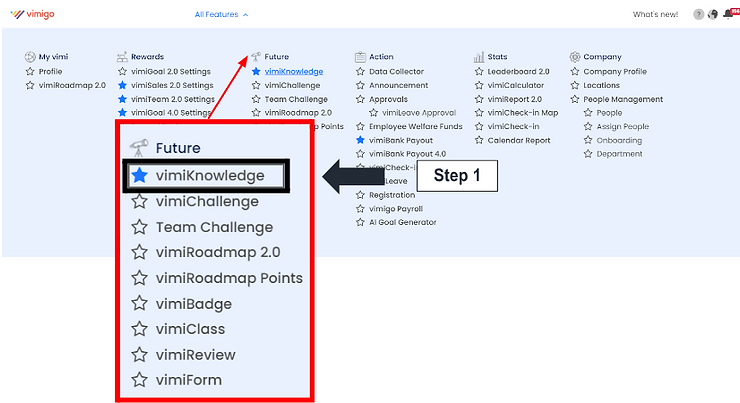
- Click vimiKnowledge in the side menu.
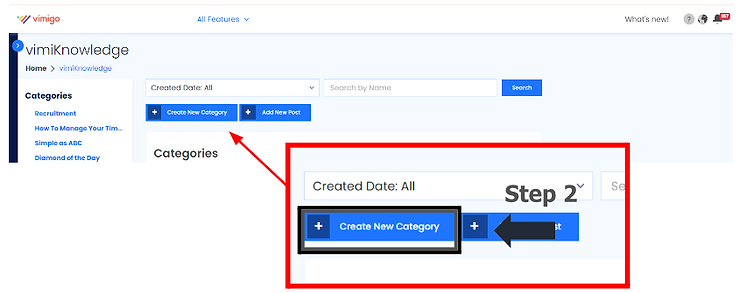
- Click "Create New Category" at the top right.
- Fill in "Category Title" (e.g. "HR Policies"), "Description", and optionally upload a thumbnail.
- In the "Access Right" table, check which roles can View, Create Post, Edit Post, and Delete Post in this category.
- Click "Create".
After this, you and anyone with permission can click "Add New Post" to start writing.
For Admins (Employer / HR / Manager)
How to create a new category
- In the side menu, click vimiKnowledge.
- Click "Create New Category" at the top right of the category index.
- On the "New Category" form, fill in:
- "Category Title" - up to 70 characters (e.g. "Sales SOPs").
- "Upload Thumbnail Image" - click to add a cover image. A crop tool opens. Recommended size: 118×75 pixels.
- "Description" - up to 1,000 characters explaining what this category is for.
- Scroll to the "Access Right" table. Each row is a company role (Employer, HR, Manager, Staff). Each column is a permission: View, Create Post, Edit Post, Delete Post.
- By default View is checked for all roles.
- Check Create / Edit / Delete for the roles that need those abilities.
- Management user / master-permission roles have all four boxes pre-checked and greyed out - they always have full access.
- Click "Create".
The category appears in the left sidebar immediately.
How to create a sub-category
- Open the parent category in the sidebar.
- Click "Create New Category".
- The form now shows "New Sub-Category" with a back link to the parent.
- Fill in the same fields as a main category.
- Click "Create".
The sub-category appears indented under the parent.
How to write a post
- From any category page or the main index, click "Add New Post".
- The form opens as "Create New Post".
- Fill in "Post Title" (required, up to 191 characters).
- (Optional) Click "Upload Thumbnail Image" for a cover picture.
- In the "Content" area, the rich-text editor loads. You can:
- Format text - bold, italic, headings, lists, links.
- Drag and drop images into the editor.
- Insert tables, embedded videos (YouTube / Vimeo), and iframes.
- Paste from Word or Google Docs - formatting is preserved sensibly.
- Click "Attach a file" to add attachments. Each file can be up to 30 MB; total up to 500 MB.
- (Optional) Use "Tag Departments" to limit the post to specific teams.
- In "Category", confirm which category/sub-category the post belongs to.
- (Optional) Use the "Assign Users" section to tag specific people - only they (plus the author) will see the post.
- Click "Save".
Eligible staff get a push notification that a new post is live.
How targeting works
You have two layers of audience control:
| Department tag | User tag | Who sees the post |
|---|---|---|
| None | None | Everyone with View permission on the category |
| Set | None | Only staff in the tagged departments |
| None | Set | Only the tagged users (plus the author) |
| Set | Set | Staff in the tagged departments OR the tagged users |
Management users with master permission always see every post regardless.
How to set a default category
One category can be the default landing spot when staff open vimiKnowledge.
- Navigate to the category you want as default.
- Use the "Set as Default" action from the category menu.
- The previously-default category is automatically unset - only one default at a time.
How to pin (feature) a post
Featured posts get prominent placement on the mobile home screen. Use them for the most important announcements - a new policy, a mandatory training.
- Open the post.
- Click the "Feature" or pin action.
- To unfeature, click the same button again.
How to upload a video in a post
- Open the post editor.
- Click the Media button in the toolbar.
- Paste a YouTube or Vimeo URL - the editor embeds it.
- Or, for a direct upload, use the source-code view to paste an iframe embed.
Images you drag into the editor are uploaded to your company's private storage automatically.
How to manage custom post order
If you want a specific reading order for a category (e.g. onboarding Day 1 → Day 2 → Day 3):
- Open the category.
- In the sort dropdown, pick "Custom Order" and click "Sort".
- Drag and drop the post cards into the order you want.
- The order is saved automatically and applies to the mobile app too.
Other sort options: "Name (A-Z)", "Name (Z-A)", "Newest Created", "Oldest Created".
How to delete or edit a post
- Open the post.
- Click "Edit Post" (top right of the post header) to change title, content, attachments, or tagging.
- To delete, use the delete action (only visible to roles with delete permission). Confirm the dialog.
Deleted posts are removed from views and their attachments are permanently removed from storage. This can't be undone.
For Employees
How to read posts
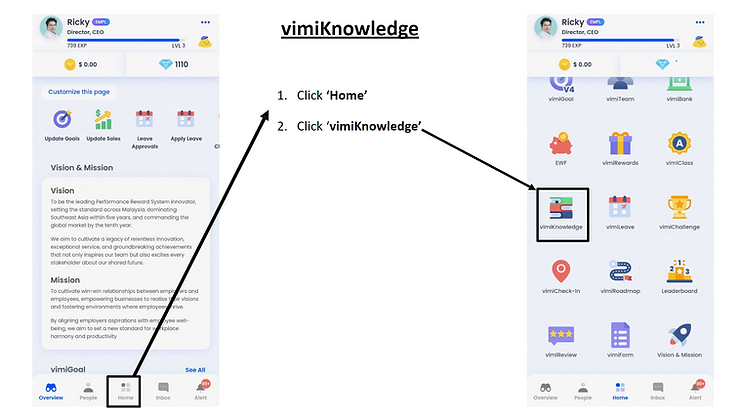
- Open vimiKnowledge from the side menu.
- The left sidebar shows the "Categories" tree. Click a category to open it.
- Categories you don't have view permission for are hidden automatically.
- Click a post title to open it.
- Attachments appear below the content - click to download.
If an attachment link stops working, reload the page - download links expire after about an hour and are refreshed automatically on page load.
How to search
- On the index or category page, type a keyword into "Search by Name".
- Click "Search".
- To filter by date, click "Created Date: All" to open the date picker and set a range.
How to like and comment on a post
- Open a post.
- Tap the like icon below the content. Tap again to unlike.
- Hovering on the like count shows who liked it.
- To comment: scroll to the "Comment box" section, type in the text area (placeholder: "Let us know what you think!"), and click "Submit".
- Your comment appears in "Comments (N)" below.
When a post reaches 10 likes or 10 comments, the author earns bonus experience points on the leaderboard.
How to bookmark posts
- On a post card or within the post view, click the bookmark icon.
- Open "Bookmarks" in the sidebar to see all your saved posts.
- Create folders to organise them - e.g. "Onboarding", "Reference", "To Read Later".
- Drag bookmarks into folders, or use the move action.
Bookmarks are private - no one else sees yours.
How to find your own posts
- Click "My Posts" in the vimiKnowledge navigation.
- Sort by "Latest", "Oldest", "Most Liked", "Most Commented", or "Most Viewed" to see how your posts have landed.
Settings & Configuration
Category fields
| Field | Required | Constraint |
|---|---|---|
| "Category Title" | Yes | max 70 characters |
| "Description" | Yes | max 1,000 characters |
| "Upload Thumbnail Image" | No | image file, recommended 118×75 px |
| Parent (for sub-category) | No | existing category |
| "Access Right" matrix | No | per role: View / Create Post / Edit Post / Delete Post |
Post fields
| Field | Required | Constraint |
|---|---|---|
| "Post Title" | Yes | max 191 characters |
| "Content" | Yes | rich HTML (TinyMCE editor) |
| "Upload Thumbnail Image" | No | image file |
| "Attach a file" | No | max 30 MB per file, 500 MB total |
| "Category" | Yes | existing category |
| "Tag Departments" | No | multi-select |
| "Assign Users" | No | tagged users + author can see it |
Access permissions
| Permission | What it lets a role do |
|---|---|
| View | See the category in the sidebar and open its posts. |
| Create Post | Add new posts in this category. |
| Edit Post | Edit any post in this category (not just their own). |
| Delete Post | Delete any post in this category. |
Sort options
| Option | When to use |
|---|---|
| "Name (A-Z)" | Stable alphabetical order. |
| "Name (Z-A)" | Reverse alphabetical. |
| "Newest Created" | Feed-style view - most recent first. |
| "Oldest Created" | Historical order - useful for versioned SOPs. |
| "Custom Order" | Drag-and-drop manual curation. |
Rich editor quick reference
- Bold, Italic, Underline, alignment, bullet/numbered lists.
- Link / Image / Media embed / Iframe.
- Tables with full row/column controls.
- Emoticons, search and replace, word count, character map.
- Paste from Word/Google Docs - formatting preserved.
- Source code view for advanced HTML.
FAQ
Q: I can't see a category I used to have access to.
A: A management user likely changed the access rights. vimiKnowledge recalculates your access in the background when permissions change - wait a minute and refresh. If it's still missing after that, ask a management user to check your role's View permission on the category.
Q: My post is blank for some colleagues but not others.
A: You probably tagged departments or specific users on the post. Only staff in the tagged departments (or the tagged users themselves) see the post. A management user with master permission can edit the tagging.
Q: Can I embed a YouTube video in a post?
A: Yes. Use the Media button in the editor toolbar to paste the YouTube URL, or paste an iframe embed code in source view. YouTube, Vimeo, and other media players are supported.
Q: An attachment link I saved gives an error when I open it later.
A: Attachment links are signed and expire after about an hour for security. Reload the post - the system automatically generates a fresh link.
Q: I can't see the Create New Category button.
A: Your role doesn't have create permission. Contact your management user to grant it.
Q: Why am I getting a notification about a category I don't have access to?
A: Notification preferences and category view rights are separate. You can disable the "New Category Created" notification in your personal notification preferences.
Q: How do I remove the Featured label from a post?
A: Open the post and click the same pin/feature action - it's a toggle.
Q: Can I prevent colleagues from editing my post?
A: Edit permission is role-based, not post-based. If a role has Edit Post on the category, they can edit any post in it - including yours. If you need stricter control, move the post into a category where fewer roles have edit permission.
Q: How does vimiKnowledge tie into the leaderboard?
A: Authors earn experience points for publishing posts, plus bonus points at 10 likes and at 10 comments. That feeds the "Monthly Knowledge" and "Yearly Knowledge" leaderboards, and the XP pool contributes to vimiClass performance.
Related Guides
- Leaderboard - vimiKnowledge activity powers the "Monthly Knowledge" and "Yearly Knowledge" leaderboards.
- vimiClass - experience points earned here contribute to overall performance scoring.
- vimiRoadmap - knowledge-base activity can earn points and badges used as roadmap milestone prerequisites.