vimiClass
Automatically grade every employee at the end of each cycle based on goals, reviews, and attendance - then hand out the rewards you promised.
What is it?
vimiClass is your company's automatic performance recognition engine. At the end of each cycle (monthly, quarterly, every six months, or yearly), the system looks at each employee's goal completion, review ratings, and check-in reliability. It combines the three numbers using weights you choose, compares the result to your medal thresholds, and awards a grade - "Class A", "Class B", "Class C", or "Class D".
If you have turned rewards on, the matching payout (cash to vimiBank, diamonds, a welfare-fund contribution, or a badge) is sent automatically. Nobody has to run a spreadsheet, nobody has to remember to pay out. The scheduler does it on schedule, every cycle.
Use vimiClass when you want a fair, repeatable way to recognise top performers and flag people who need support - without the politics of manual performance reviews.
Quick Start
If you are setting up vimiClass for the first time, do these five steps:
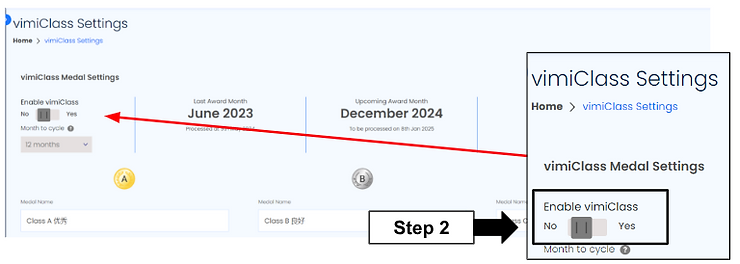
- Go to Settings → vimiClass and flip "Enable vimiClass" to ON.
- Pick a "Cycle": "1 month", "3 months" (most common), "6 months", or "12 months".
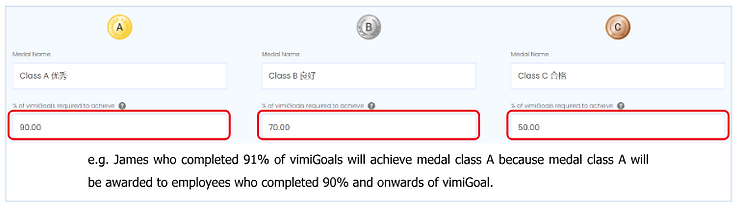
- In the "vimiClass Medal Settings" section, set thresholds for Class A, B, and C. A must be higher than B, B higher than C. Class D is always 0.
- In the "Performance Weightage" section, set how much vimiGoal, vimiReview, and vimiCheck-In each count. The three must total 100%.
- Click "Save Changes".
After this, employees will be graded automatically at the end of each cycle. The stat card labelled "Upcoming Award Month" tells you when the next grades will be processed.
For Admins (Employer / HR / Manager)
How to set medal thresholds
Medal thresholds decide what performance score is needed to earn each grade. Defaults are 85 / 65 / 45, but you can tune them to match your culture - stricter for a sales team, easier for a warehouse.
- Open Settings → vimiClass.
- Scroll to the "vimiClass Medal Settings" section.
- For each of Class A, B, and C, edit:
- "Medal Name" - e.g. "Star Performer", "Workhorse", "Team Player".
- "% of vimiGoals" - the minimum score needed. A must be higher than B, B higher than C.
- "Description" - the short message staff see when they earn the medal.
- Class D's threshold is always 0 - it catches everyone below Class C. You can rename it but you cannot change its number.
- Click "Save Changes".
Tip: Don't overthink the names - just use something your staff will understand. "Class A" works fine. If you want flavour, try "Jackpot", "Rising Star", "Steady Builder", "Growing".
How to set performance weightage
Weightage tells vimiClass how much each of the three signals matters. A sales team might weight goals heavily; a warehouse team might weight attendance heavily.
- In Settings → vimiClass, scroll to "Performance Weightage".
- Enter a percentage for each of "vimiGoal (%)", "vimiReview (%)", and "vimiCheck-In (%)". The three must total exactly 100.
- Set the "Grace Period" - how late a check-in can be and still count as on time. 0 seconds is strict; 1,800 seconds (30 minutes) is a typical office default. Max is 12 hours.
- Click "Save Changes".
Common setups:
| Team | Goal | Review | Check-In |
|---|---|---|---|
| Sales | 60% | 20% | 20% |
| Customer service | 10% | 80% | 10% |
| Warehouse / factory | 20% | 10% | 70% |
| Office professional | 50% | 30% | 20% |
| First-time users (balanced) | 34% | 33% | 33% |
The performance score is calculated as:
Score = (Goal% × Goal weight) + (Review% × Review weight) + (Checkin% × Checkin weight)
Example: Ahmad (Sales) hits 92% of his goals, has an 88% review score, and 90% attendance. With 50 / 30 / 20 weights his score is (92×0.5) + (88×0.3) + (90×0.2) = 90.4% - Class A.
How to turn on rewards
- In Settings → vimiClass, scroll to the "Rewards" section.
- Toggle "Enable Rewards" to ON.
- For each medal grade, pick one or more reward types from the dropdown:
- "Bank" - a cash amount paid out through vimiBank (RM).
- "Diamond" - diamonds credited to the employee's wallet.
- "EWF" - a contribution to the employee's welfare fund (pick the wallet type: car, housing, education, etc.).
- "Badge" - an on-profile recognition badge.
- Enter an "Amount" or "Quantity" for each one.
- Click "Save Changes".
Example: Class A → RM 200 to vimiBank + 5,000 diamonds
         Class B → RM 100 + 2,000 diamonds
         Class C → 500 diamonds
         Class D → (nothing)
Warning: Before you enable big bank or diamond rewards, check the company's vimiBank balance and diamond pool. If there isn't enough, some rewards will fail and you will have to retry them.
How to set up a department override
A single company can serve very different teams. Department overrides let the Customer Service team score on reviews (80% review weight) while Warehouse scores on attendance (70% check-in weight).
- In Settings → vimiClass → vimiClass Medal Settings, click "Add Department".
- Pick the department from the dropdown.
- Fill in the medal names, thresholds, and descriptions for that department.
- In "Performance Weightage", click "Add Department" and set the same department's weights and grace period.
- In "Rewards", click "Add Department" and configure that department's per-grade rewards.
- Click "Save Changes".
The department override wins whenever it is valid (weights total 100). Otherwise the company default applies.
How to retry or undo a reward batch
Sometimes a diamond wallet runs dry mid-distribution, or you typed 10,000 instead of 1,000. Both are fixable.
- Go to Settings → vimiClass and click "vimiClass History" at the top right.
- Click the "Rewards" filter chip.
- Find the batch card for the month in question.
To retry failures:
- Top up the wallet (for diamond or bank shortfalls).
- On the batch card showing "7 Failed" (or however many), click "Retry".
- The failed rewards go back through the queue.
To undo a wrong batch:
- Click "Unroll" on the batch card.
- Confirm. The system reverses every reward with an exact negative deduction.
- Go back to Settings → vimiClass, fix the amount, and click "Save Changes".
- Return to the unrolled batch and click "Regive" to redistribute with the correct amount.
How to switch to the new Performance Center
The Performance Center is the new live view of vimiClass. Instead of waiting for the end-of-cycle cron to run, it shows each employee's current grade and score as the cycle unfolds, and it's the one place where you finalise a month by hand, apply an override, and set the vimiTeam multiplier.
Switching over is one click from the classic settings page:
- Open the classic Settings → vimiClass page.
- Click "Use new view".
- Read the short intro that pops up - it explains what turns on.
- Click "Go".
That single action turns on the live hub, manual finalize, override, and the vimiTeam multiplier, and takes you straight into the Performance Center. Nothing is recalculated or paid out just by switching - it only unlocks the new view and its tools.
Overrides now live in the Performance Center. To adjust a grade, open the month inside the Performance Center and apply the override there - it's done per-month, right in the view. The Excel-based Manual assign wizard (covered later in this guide) still works for bulk corrections; the in-view override is the quick, single-month path.
For Employees
How to check your medal
After each cycle ends, wait a few days for processing (typically 5 days of buffer so managers can finalise goal scores and approve late leaves). You will get a push notification when your medal is awarded.
- Open the vimigo app.
- Go to Profile → vimiClass.
- You will see your current medal, the performance score, and a breakdown of how it was calculated.
Example breakdown: "Your score was 87.5% (Goal: 92% × 50%, Review: 80% × 30%, Check-In: 85% × 20%)".
How to understand your rewards
If your company has rewards turned on, you get a second notification when your reward lands. Check the status under Profile → vimiClass → latest award → Rewards:
- "Pending" - being processed.
- "Distributed" - done. Check your vimiBank, diamond wallet, or badge list.
- "Failed" - ask HR to retry.
What to do if your medal looks wrong
- Check your vimiGoal completion for the cycle period.
- Confirm reviews about you were submitted and marked "Include in vimiClass Performance".
- Check your vimiCheck-In history - days without a valid check-in drag your score down.
- If something is genuinely wrong (goals entered late, reviews missed), ask HR to request a manual recalculation.
Settings & Configuration
| Setting | What it does | Default | Where |
|---|---|---|---|
| "Enable vimiClass" | Master toggle. Off means no processing runs. | Off | Settings → vimiClass |
| "Cycle" | How often medals are awarded: 1 / 3 / 6 / 12 months. | 12 months | Settings → vimiClass |
| "% of vimiGoals" (A/B/C) | Threshold scores for each grade. A > B > C. | 85 / 65 / 45 | Settings → vimiClass → Medal Settings |
| "vimiGoal (%)" / "vimiReview (%)" / "vimiCheck-In (%)" | Weight for each score component. Total must be 100. | Varies | Settings → vimiClass → Performance Weightage |
| "Grace Period" | Seconds late a check-in can be and still count. Max 12 hours. | 3 hours (legacy) | Settings → vimiClass → Performance Weightage |
| "Enable Rewards" | Turns reward distribution on/off after grading. | Off | Settings → vimiClass → Rewards |
| Reward type + "Amount" / "Quantity" | Per-grade payout (Bank / Diamond / EWF / Badge). | Empty | Settings → vimiClass → Rewards |
| "Add Department" | Adds a department-specific override for settings, weightage, or rewards. | - | Each section |
| "Browse Templates" | Loads one of 12 pre-built setups (Sales Crusher, Customer First, etc.). | - | Settings → vimiClass |
Pre-built templates
If you don't want to build from scratch, click "Browse Templates" and pick one:
| Template | Cycle | Goal / Review / Check-In |
|---|---|---|
| Sales Crusher | Quarterly | 60 / 20 / 20 |
| Customer First | Monthly | 10 / 80 / 10 |
| Clock-In Champion | Monthly | 20 / 20 / 60 |
| The Balanced Start | Monthly | 34 / 33 / 33 |
| Elite Quarterly | Quarterly | 50 / 30 / 20 |
| Welfare & Future | Quarterly | 40 / 35 / 25 |
FAQ
Q: The month just ended. Why haven't medals been awarded yet?
A: vimiClass waits 5 days after month end before processing, so you have time to finalise goal scores, approve late leaves, and submit reviews. The "Upcoming Award Month" stat card shows when processing will run.
Q: Aisha hit 100% of her goals but got Class C. How?
A: Check the weightage. If you use 50% Goal / 30% Review / 20% Check-In and Aisha has a perfect goal score but a 20% review score and 40% attendance, her total is (100×0.5) + (20×0.3) + (40×0.2) = 64%. That is below Class A (85%) and Class B (65%), so she lands in Class C. Also check whether her department has its own override - dept weights win over company default.
Q: We awarded everyone too many diamonds. Can we take it back?
A: Yes. Go to vimiClass History, find the batch, click "Unroll". The system issues exact negative deductions. Then fix the setting and click "Regive" to redistribute correctly.
Q: Medals were awarded but no rewards arrived.
A: Check that "Enable Rewards" is on, that actual reward items are configured for the grade the employee received, and that the company has enough vimiBank / diamond balance. Failed items show on the vimiClass History → Rewards tab with a "Retry" button.
Q: The grace period was left blank and now check-ins are being scored harshly.
A: A blank grace period defaults to 3 hours (legacy). If you want strict zero tolerance, explicitly enter 0 in the hours, minutes, and seconds fields.
Q: Can we give different teams different rules?
A: Yes. In each of the three sections (Medal Settings, Performance Weightage, Rewards), click "Add Department" to add a row specific to that department. Overrides take priority whenever they are valid.
Q: What happens to Class D staff?
A: Class D means their score was below the Class C threshold. That's a signal for coaching, not punishment. Most companies configure no reward for Class D - the grade itself is the message.
Q: How do I switch to the new vimiClass view?
A: On the classic Settings → vimiClass page, click "Use new view", read the short intro, and click "Go". That turns on the live Performance Center along with manual finalize, the per-month override, and the vimiTeam multiplier, and drops you straight into the new view. Switching doesn't recalculate or pay anything - it just unlocks the new hub.
Manual assign workflow
Sometimes a past month's scores end up wrong. Maybe a goal was approved late, a check-in correction came in after the cron ran, or your line manager realised they entered the wrong review. vimiClass gives you a built-in Manual assign wizard so you can fix it yourself - no support ticket needed.
Open vimiClass Settings, and at the top of the page (next to "vimiClass History") click "Manual assign". The wizard has 3 steps and the whole thing usually takes about 5 minutes.
Step 1 - Download the template. Pick the month you want to fix from the "Month" dropdown. Only months that have fully ended show up here - you can't assign grades for the current month until it finishes (otherwise the grades aren't final yet anyway). Choose "Excel (.xlsx)" if you want to open it in Excel or Google Sheets, or "JSON" if you have an IT person who prefers that format. Click "Download template" and the file downloads.
[screenshot: step 1]
The template lists every staff under your company for that month, with their current score and grade already filled in. Edit the score column for the staff whose grade you want to change, and add a short reason in the remarks column (e.g. "Q1 peer-review correction"). Save the file.
Step 2 - Upload your changes. Back in the wizard, drag and drop the edited file onto the upload area (or click to browse) and click "Upload".
[screenshot: step 2]
The system checks the file is the one we sent you (we watermark it) and confirms nothing else has been changed besides the scores and remarks. If something doesn't match - say someone tried to edit a staff ID - you'll see an error and the upload is rejected. Don't worry, your download is still valid; just fix the file and try again.
Step 3 - Confirm. You'll see a clean before-vs-after table of every grade that's changing, with a small summary header showing the month, the change count, and any warnings. By default only the changed rows appear, so you can focus. Tick "Show all rows" if you want to also see staff whose grades aren't changing.
[screenshot: step 3]
Take a moment to verify the numbers look right. Tick "Redistribute rewards if grades change" if you want the system to automatically claw back the old rewards (diamond, vimiBank, EWF, badge) at the old grade and re-distribute the new rewards at the new grade. Untick it if you only want to fix the scores on paper and leave the existing payouts alone - handy when you've already settled the rewards out-of-band.
Click "Apply assign". Done. The system updates the scores immediately, notifies each affected staff via the bell icon, and writes an audit log entry so anyone looking back can see who changed what and when.
Common questions
Q: Can I assign grades for past months?
A: Yes - past months only. The current month must finish before its grades can be assigned, because partway through the month the scores aren't final.
Q: What happens if I lose the Excel template?
A: Just download a fresh one. The old token expires in 72 hours anyway, so don't worry about cleanup.
Q: Will assigning manually break my reward distributions?
A: Only if you tick "Redistribute rewards". Otherwise existing payouts are untouched - only the score and grade record changes.
Q: Can two HR users assign the same month simultaneously?
A: No - the system detects this and asks the second person to re-preview if someone else changed grades after their preview. That way you never silently overwrite a colleague's work.
Related Guides
- vimiCheckin - feeds attendance data into the vimiClass check-in component.
- Leaderboard - "Most Class A" ranks repeat top performers; "Top vimiClass (This Month, Live)" shows the live class race with each person's Class and score; "Most Improved vimiClass" celebrates month-over-month growth. Historical months show the class each person actually earned under that month's settings.
- vimiRoadmap - career-ladder module that pairs well with vimiClass grading.