Diamond
Diamonds are your company's in-app reward currency - you earn them for hitting targets and spend them on real rewards or Lucky Wheel spins.
What is it?
Diamonds are vimigo's flagship gamification currency. They are virtual points your company awards to staff for good work, and staff spend them in the "vimiRewards" shop or on "Lucky Wheel" spins.
Your company holds a master supply of diamonds called the Principal Wallet, and every employee has their own personal diamond balance. When a boss or management user awards diamonds - or when a goal, sales target, or challenge automatically pays out - diamonds move from the Principal Wallet into the employee's balance. When staff redeem a reward, diamonds come out of their balance again.
Think of diamonds as an internal loyalty-points programme. Unlike vimiBank (which handles real RM payouts tied to your payroll), diamonds have no fixed monetary value - the boss decides what one diamond is worth, and can change the rate at any time. That flexibility is the point: it lets you run a recognition economy without re-pricing every reward every time your budget shifts.
Quick Start
If your company has just switched on the Diamond module, do these five things in order.
- Go to Admin Panel → "Company" → "Diamond".
- Top up the Principal Wallet with a starting balance - enough for 3–6 months of expected awards. If you have 50 staff and expect to give 10 diamonds each per month, that's 1,500–3,000 diamonds as a buffer.
- Decide your diamond-to-ringgit rate (e.g. 500 diamonds = RM1) and tell your staff what it is, so they know what their balance is worth.
- Award some starter diamonds: select 5–10 staff, use "Bulk Action" → "Transfer Diamond", enter an amount and a remark like
"Welcome bonus". - Confirm staff can see their balance in the mobile app (Diamond tab / Wallet screen) and that a "vimiRewards" item exists for them to spend on.
After this, diamonds are live in your company. Every closed goal, sales target, and challenge with a diamond reward configured will automatically add to the right staff member's balance.
For Admins (Employer / HR / Manager)
How to top up the Principal Wallet
The Principal Wallet is your company's diamond treasury. You must have enough diamonds in it before you can transfer to staff.
Who can top up: the company's principal user (the owner account marked "Principal" in the diamond table) or any user with the Employer or HR role. Manager and other roles can move diamonds around but cannot add new ones to the company pool. If you see a "This action is unauthorized." error, ask the principal user, an Employer, or HR to do the top-up — or contact your vimigo VSP to grant the right role.
- Go to Admin Panel → "Company" → "Diamond".
- Find the row marked "Principal" (this is the owner/employer account).
- Open the top-up action (labelled "Add Principal Diamond" or similar in your UI).
- Enter the amount - e.g.
5000. - Save.
The new balance shows immediately on the principal row and in the "Current Diamond" summary at the top of the page.
Tip: The system sends a low-balance notification when the Principal Wallet drops below the last transfer amount. Treat this as your signal to top up.
How to award diamonds to one employee
Scenario: Aisha closed an unexpectedly big deal and you want to award her 50 diamonds on the spot.
- Go to Admin Panel → "Company" → "Diamond".
- Find Aisha's row (use the "Search" box or "All Department" filter if your company is large).
- Click the three-dot action icon on her row.
- Choose "Transfer Diamond".
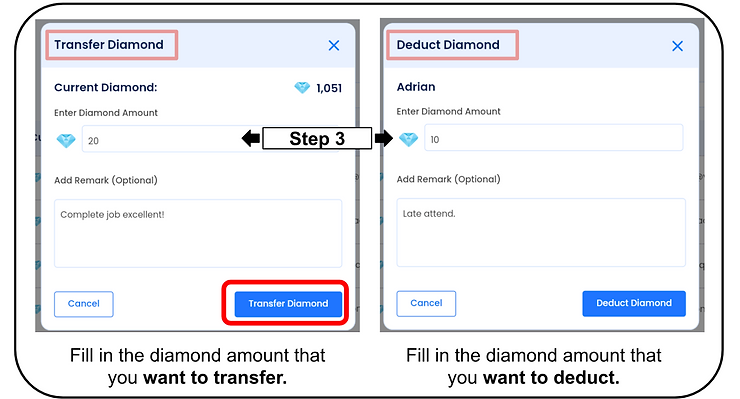
- Enter "Enter Diamond Amount" =
50. - Fill in "Add Remark (Optional)" - e.g.
"Closed the Tan Enterprise deal 14 Apr". - Click "Transfer Diamond".
A "Diamond is successfully transferred" toast confirms it. Aisha gets a push notification and the amount moves from the Principal Wallet into her balance.
How to award diamonds to a group (bulk transfer)
Scenario: All 12 members of the Sales team hit their Q1 target. You want each of them to get 20 diamonds.
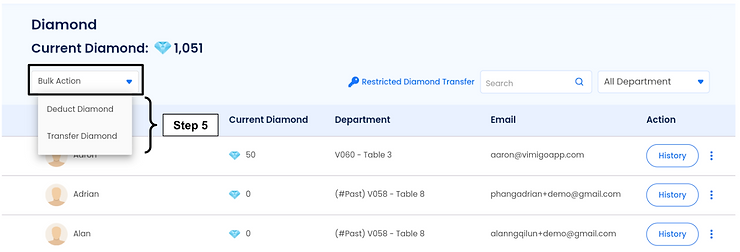
- On the "Diamond" page, click the "All Department" filter and pick
Sales. - Tick the checkboxes next to each of the 12 staff (or the header checkbox to select the whole filtered list).
- At the top, open "Bulk Action" → "Transfer Diamond".
- Enter amount
20and a remark like"Q1 Sales target achieved". - Click "Apply" (and confirm in the modal).
Each selected staff member gets 20 diamonds, and the Principal Wallet is debited by 240 (20 × 12).
How to deduct diamonds (corrections)
Mistakes happen - a management user awards 500 diamonds to the wrong person, or an over-award needs rolling back.
- Go to Admin Panel → "Company" → "Diamond".
- Find the employee's row.
- Click the three-dot action icon → "Deduct Diamond".
- Enter the amount to remove and a remark explaining why (e.g.
"Correction - intended for Wei, not Ahmad - 18 Apr"). - Click "Deduct Diamond".
A "Diamond is successfully deducted" toast confirms it. The diamonds return to the Principal Wallet and the action is logged in the employee's history.
Warning: Staff see their transaction history. Always use the "Add Remark" field to explain corrections - otherwise a deduction looks arbitrary to the affected person.
How to check an employee's full diamond history
When a staff member disputes their balance - "I had 200 yesterday, now I have 150, what happened?" - this is how you investigate.
- Go to "Company" → "Diamond".
- Find the employee and click "History" on their row.
- The history page shows every transaction: "Transaction Amount", "Remarks", "Date & Time", and "Issued By".
- Optionally set a "Start date" and "End date" and click "Filter".
- Positive numbers are diamonds received; negative numbers are diamonds taken away.
Every award, deduction, reward redemption, Lucky Wheel spin, and automatic goal/sales payout shows here.
How to restrict who can transfer diamonds
By default, anyone with the "View Diamond Dashboard" permission can transfer. To limit transfers to a small group (e.g. only the HR manager), set up the "Restricted Diamond Transfer" list.
- On the "Diamond" page, click "Restricted Diamond Transfer" at the top.
- Add the user IDs (or select people) who are allowed to transfer.
- Save.
Once the list has anyone in it, only listed users (plus the employer/principal account) can perform transfers. Leave the list empty to remove all restrictions.
How to run the Diamond Day ritual
Many companies use a monthly cadence called Diamond Day - a fixed day each month when the boss sits with a team list and awards diamonds for the month's wins. It keeps recognition visible and rhythmic rather than ad-hoc.
A typical Diamond Day checklist:
- Open "Company" → "Diamond", filter by department.
- Review each team's monthly performance (use the vimiSales and vimiGoal reports alongside).
- Use "Bulk Action" → "Transfer Diamond" for department-wide bonuses, or the three-dot "Transfer Diamond" action for individual awards.
- Write a specific remark for each award - not
"Good job", but"Closed 3 new accounts in April". - Announce the awards in your company chat or a short monthly meeting so the recognition is public.
Pair Diamond Day with the monthly "vimiRewards Day" (see vimiRewards guide) so staff have something to spend their fresh diamonds on.
Setting the diamond-to-ringgit rate
The RM value per diamond is decided by the boss and is not stored in vimigo itself. You communicate it to staff manually.
Common starting rates:
| Rate | When to use |
|---|---|
| 500 diamonds = RM1 | Default for most SMEs. Makes small awards (10–50 diamonds) feel meaningful without inflating the currency. |
| 100 diamonds = RM1 | Lighter gamification; diamonds feel more like "points" than money. |
| 1,000 diamonds = RM1 | Larger companies or high-value recognition schemes. |
You can change the rate at any time without touching any balances. If you re-price, announce it clearly - otherwise staff see no change to their number and assume nothing has happened.
Tip: Staff don't see the ratio in the app. Keep a single source of truth (an announcement, a wiki page, a pinned chat message) so the rate is discoverable.
For Employees
How to see your diamond balance
- Mobile: Open the vimigo app. Your current balance shows on the Diamond / Wallet tab on the home screen.
- Web: Your balance appears in your profile area.
How to see what you've already earned
Tap your diamond balance to open the full transaction history. Each row shows:
- How many diamonds you received (or spent)
- Who awarded them (for manual transfers) or which goal/sale they came from
- The date and remark
How to see what you're ON TRACK to earn
In the mobile app, open the "Earned" tab inside the diamond wallet. This shows projected diamonds from active vimiGoal and vimiSales intervals you are enrolled in.
Example: Ahmad is 80% of the way to his April sales target, which has a 50-diamond reward attached. His Earned tab shows "50 diamonds - April Sales Target - due 30 April". These are projections, not yet in his wallet. When April closes and the system finalises results, the diamonds transfer to his actual balance.
How to spend your diamonds
In the vimiRewards shop:
- Open the "Rewards" section.
- Browse the catalogue - each reward shows its diamond cost.
- Tap a reward you want.
- Confirm the purchase. Diamonds are deducted and your reward code appears.
See the vimiRewards guide for the full shopping flow.
On the Lucky Wheel (if your company has it enabled):
- Open the "Lucky Wheel" feature.
- Any free spins you have are used first.
- If the wheel has a "Buy Spins" option enabled, tap it and confirm the diamond cost to buy more chances.
See the Lucky Wheel guide for more.
Why your balance might be zero
- Your boss hasn't awarded you any diamonds yet, and no goal/sales interval you're in has closed with a diamond reward.
- The Principal Wallet is empty, so transfers are failing - check with your management user.
Settings & Configuration
| Setting | What it does | Default | Where |
|---|---|---|---|
| "Diamond 2.0" module | Master switch for the module | On | Admin Panel → Company Settings → Modules |
| "Current Diamond" (Principal) | Your company's master supply | 0 | "Company" → "Diamond" - top-up button |
| Diamond-to-RM rate | What one diamond is worth in ringgit | Not stored in vimigo; boss decides | Communicated manually to staff |
| "Restricted Diamond Transfer" | List of users allowed to transfer diamonds | Empty (no restriction) | "Company" → "Diamond" → "Restricted Diamond Transfer" |
| Diamond-award notifications | Whether all staff see a notification when anyone gets diamonds | Company-configurable | Ask your VSP / support contact |
FAQ
Q: What does one diamond cost in real money?
A: Whatever your boss decides. The default rate is 500 diamonds = RM1, but this is flexible and not stored in vimigo. Ask your boss or HR to confirm your company's current rate.
Q: I transferred diamonds to a staff member but their balance is still zero. Why?
A: The most common cause is that the Principal Wallet didn't have enough balance when you ran the transfer, so it silently failed. Check the Principal row on the "Diamond" page - if it's below the amount you tried to transfer, top it up and retry.
Q: Can staff transfer diamonds to each other?
A: Only if your company has enabled peer transfers. By default, transfers go from the Principal Wallet to staff (not between staff). Check with your management user.
Q: An employee says their "Earned" diamonds disappeared.
A: Earned diamonds are projections from live goal/sales intervals. Two things can make them disappear legitimately: (a) the interval closed and the diamonds moved into the actual balance (check transaction history), or (b) the goal/sales setting was deactivated before the interval closed, so the projection was cancelled.
Q: Why do some awards appear with different remarks than I wrote?
A: Automatic awards from vimiGoal, vimiSales, vimiTeam, and Lucky Wheel have system-generated remarks (the goal name, the sales period, "Lucky Wheel reward"). Only manual "Transfer Diamond" and "Deduct Diamond" actions use your typed remark.
Q: Can I give diamonds from my own balance instead of the Principal Wallet?
A: Yes, if configured. When transferring, some UIs expose a choice of "Use principal wallet" vs your own balance. Managers sometimes transfer from their own pool for peer recognition. Check with your management user about which mode is enabled.
Q: What's the difference between adding and setting diamonds?
A: Add (the normal "Transfer Diamond") increases the staff member's current balance by the amount you enter. Set is an advanced bulk operation that forces every selected staff member to exactly the target balance - used mainly for start-of-quarter resets ("everyone starts Q2 with 50 diamonds"). If you enter 50 with Set on someone holding 200, they lose 150.
Q: If I delete a staff member, what happens to their diamonds?
A: Their transaction history stays for audit. If you expect to recover those diamonds, use "Deduct Diamond" to return them to the Principal Wallet before deactivating the employee.
Related Guides
- vimiRewards - the shop where staff spend diamonds
- Lucky Wheel - gamified prize draws that can pay out diamonds or cost diamonds to spin
- vimiBank - real-money commission payouts (separate from diamonds)
- vimiBadge - non-monetary recognition that often pairs with diamond awards
- EWF - categorised welfare wallets funded with RM, not diamonds